My cousin muted her best friend’s Notes by accident last month, some stray tap while scrolling through her Following list late at night. She didn’t even realize it happened until her friend texted asking why she’d never once replied to any of her notes in weeks. She went looking for how to unmute notes on Instagram assuming it’d be one quick toggle, and mostly it was, except the fix didn’t actually take effect the first time she tried it. This piece walks through the real steps, what to do when the toggle doesn’t stick right away, and a few reasons Notes might still be missing even after you’ve flipped the switch back on.
How to Unmute Notes on Instagram Step by Step
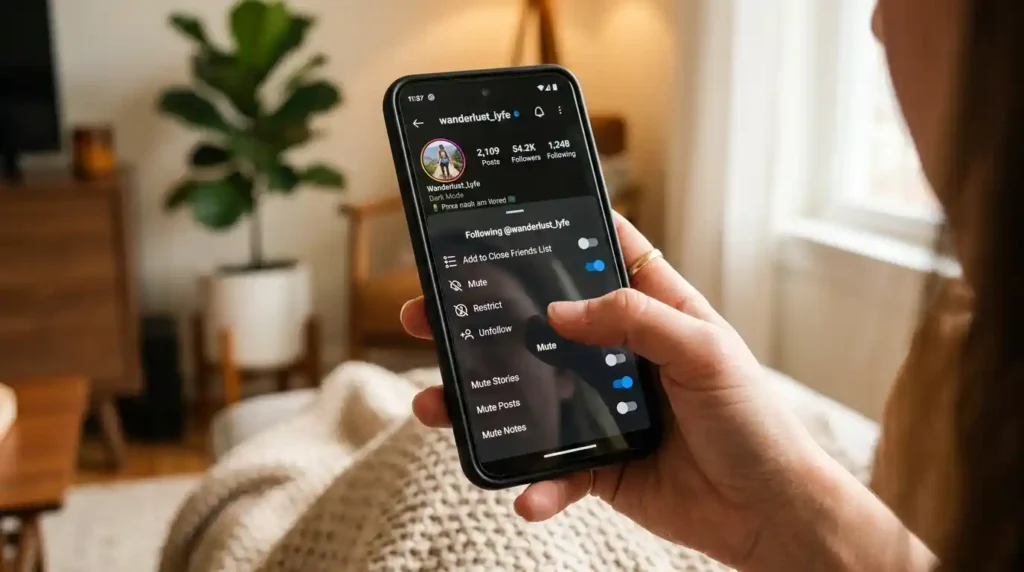
Finding the mute setting starts on the muted person’s profile, not buried in some general settings menu the way my cousin initially assumed. She searched her friend’s username, tapped into the profile, then hit the Following button near the top rather than the follow icon itself, which is an easy mix-up if you’re moving fast.
From there a dropdown opens with a Mute option, and tapping that reveals a separate toggle specifically for Notes, distinct from the one controlling Stories and posts. Her Notes toggle had somehow flipped on weeks earlier without her noticing, blue meaning muted in Instagram’s current color scheme. Switching it back to grey should’ve been the whole fix. It mostly was, eventually, though not instantly the way she expected.
How Do I Unmute Someone’s Notes on Instagram?
Visit the person’s profile, tap Following, select Mute from the dropdown, then toggle Notes back off specifically, separate from muting Stories or posts. My cousin did exactly this and the toggle visually flipped back to grey immediately. Whether her friend’s actual Notes reappeared right away is a slightly different question, one that tripped her up next.
Why the Toggle Doesn’t Always Take Effect Right Away
My cousin’s toggle looked correct the moment she flipped it, grey instead of blue, exactly what the guides she’d read described. Her friend’s Notes still didn’t show up in her inbox for a while afterward, which genuinely confused her since every tutorial made it sound instant.
Turns out timing matters more than most guides mention. If her friend hadn’t posted a fresh Note since the mute happened, there simply wasn’t anything active to display, since Notes only stick around for roughly 24 hours before expiring entirely. My cousin waited for her friend to post something new, and once that happened, it showed up in her inbox within minutes of the toggle being off.
Why Are Notes Still Not Showing After I Unmuted Someone?
The most common reason is simply that the person hasn’t posted a new Note since you unmuted them, and Notes expire after roughly 24 hours anyway. My cousin’s confusion cleared up the moment her friend posted something fresh, it appeared almost immediately once the toggle was actually off. If someone’s audience setting excludes you entirely, Mutual Followers or Close Friends specifically, no amount of unmuting will make their Notes visible either.
Checking You’ve Actually Followed the Right Steps
A second issue tripped my cousin up briefly too, she’d initially confused muting Notes with muting Stories, two entirely separate toggles sitting right next to each other in the same menu. She’d turned off the Stories mute first without realizing the Notes toggle sat below it, still active the whole time.
Double-checking both toggles specifically solved this for her. Notes and Stories can be muted independently of each other, so switching one off doesn’t automatically fix the other if both happen to be on. She said this distinction wasn’t obvious at all from just glancing at the menu quickly, both options look nearly identical at first glance.
What’s the Difference Between Muting Notes and Muting Stories?
They’re two entirely separate toggles within the same Mute menu, controlling different types of content independently. Muting Notes hides only that person’s short text updates from your inbox, while muting Stories hides their full Stories separately, and switching one off has zero effect on the other. My cousin’s mix-up is a common one, the two options sit stacked right on top of each other and look almost identical at a glance.
When to Try Updating or Restarting the App
If the toggle flips correctly but nothing changes even after waiting for a fresh Note, an outdated app version is worth checking next. My cousin’s app hadn’t auto-updated in a few weeks, and older versions sometimes display Notes settings inconsistently compared to the current interface Instagram’s rolled out recently.
A simple app update fixed a second, unrelated issue for her actually, a friend of hers who’d tried the same unmute process and still saw nothing at all. Force-closing the app and reopening it, or in more stubborn cases logging out and back in, cleared up a display glitch that a straightforward toggle switch alone hadn’t resolved.
Why Isn’t the Unmute Option Working on My Instagram App?
An outdated app version is the most common cause, since Instagram periodically shifts how settings menus look and behave between updates. Updating through the App Store or Google Play, then force-closing and reopening the app, resolves most cases where a toggle appears switched correctly but Notes still don’t show. If that doesn’t work, logging out and back in refreshes the app’s local data and often clears up whatever’s stuck underneath.
Finding Muted Accounts Without Remembering Every Username
Not everyone remembers exactly who they’ve muted, which was genuinely my cousin’s bigger worry after this whole ordeal, wondering if she’d accidentally muted someone else too without noticing. Instagram keeps a full list under Settings and Privacy, then What You See, then Muted Accounts, showing everyone currently muted in one place rather than requiring a search for each person individually.
She scrolled through hers and found exactly one other accidental mute from months earlier, someone she’d apparently muted by mistake during a totally different late-night scrolling session. Checking this list occasionally, especially after noticing one accidental mute, catches others hiding in the same spot before they turn into another confused text message from a friend.
Conclusion
Learning how to unmute notes on Instagram comes down to one toggle on the right profile, but getting Notes to actually reappear sometimes takes a bit more patience than the toggle switch alone suggests. My cousin’s fix worked once she understood three separate things, the toggle itself, the 24-hour expiration on Notes, and the app-update issue that occasionally gets in the way. Check the Muted Accounts list under Settings and Privacy too, since one accidental mute often isn’t the only one sitting there unnoticed.
Frequently Asked Questions
How do I unmute someone’s Notes on Instagram?
Go to their profile, tap Following, select Mute, then switch off the Notes toggle specifically, separate from the Stories mute option. The toggle should turn grey once it’s off, and their Notes will reappear once they post something new.
Why can’t I see someone’s Notes even after unmuting them?
The most likely reason is that they haven’t posted a new Note since you unmuted them, since Notes only stay active for about 24 hours. Their audience setting also matters, if you’re not a mutual follower or on their Close Friends list, their Notes stay hidden regardless of your own mute settings.
Does unmuting someone’s Notes notify them?
No, Instagram doesn’t send a notification when you mute or unmute someone’s Notes, the change happens quietly on your end only. The other person has no direct way of knowing their Notes were muted or unmuted unless you tell them yourself.
Can I unmute Notes without unmuting Stories?
Yes, Notes and Stories have completely separate mute toggles within the same menu, so adjusting one doesn’t affect the other. This lets you keep someone’s Stories muted while still seeing their Notes, or the reverse, depending on what you actually want to see.